1 00:00 What is Screen2ipcam Screen2ipcam turns any Windows screen into a standard ONVIF / RTSP IP camera, so your NVR records the screen right next to your real cameras. No capture card, and nothing to install on the recorder. 00:00 One of these cameras is not a camera. 00:02 It's a Windows PC screen, recorded on the NVR, right next to the real cameras. 00:07 Your cameras see the cashier. 00:09 But the real story is on the screen: the sale, the order, 00:13 the machine. Until now, putting a screen on your CCTV meant a capture card, 00:18 or a hardware encoder, for every single screen. 00:22 Screen2ipcam does it in software. 00:24 It turns any Windows screen into a standard ONVIF and RTSP IP camera. 00:30 No capture card, no extra hardware, and nothing to install on the recorder. 00:35 Add it to Hikvision, Dahua, or any NVR, just like any other camera. 00:39 From the cash register to the factory floor, any screen worth recording. 00:44 It's light, about two percent CPU, and it runs on Windows 7 to Windows 11. 00:49 Try it free for 14 days. 00:51 After that, it's one payment for life, with no subscription. 00:55 Details at screen2ipcam.com.
2 00:58 Install, address & static IP After install, a window shows the PC address and three links: RTSP, ONVIF and the web panel. Give the PC a fixed IP, so the recorder always finds the camera after a restart. Read the detailed page → 00:58 This is a full tour of Screen2ipcam, version 2.0.5. 01:04 Every screen, from the first install to recording on your NVR. 01:08 Right after you install it, this window opens. 01:11 At the top is your PC's address on the network, here 192.168.1.206. 01:18 Below it are three links: RTSP, for players like VLC. 01:23 ONVIF, for your NVR. 01:24 And the web panel. Each one has its own Copy button. 01:28 The default login is admin, admin. 01:30 One important tip: give this PC a fixed IP address. 01:34 If it gets its address automatically, Screen2ipcam shows this yellow warning, 01:39 because the address can change after a restart, and next time the recorder won't 01:44 find the camera. A fixed address means the camera is always there. 01:48 Now click Open control panel to see all the settings. 3 01:52 Status tab The first place to look: license status, motion events, which recorder is connected right now, the stream links, and buttons to open the web panel, stop the stream or check the firewall. 01:52 Here is the Status tab. 01:54 It's the first place to look. 01:55 At the top, your license status. 01:58 Then the motion events line. 02:00 Recorder OK means your NVR is subscribed to motion events. 02:03 Connected devices shows who is connected to this camera right now. 02:07 Here, the NVR at 192.168.1.215 is 02:13 pulling the main and the sub stream, connected now. 02:16 Below that are your address and the three links: 02:19 RTSP, ONVIF, and the web panel. 02:22 Stream: running, with a tick, means the camera is live. 02:26 You'll also find the Device ID, and the version. 02:29 The buttons: open the web panel in your browser, 02:32 refresh, or stop the stream. 02:34 Show info and ports reopens the first window, with the address and links. 02:39 And Check firewall makes sure Windows lets your recorder reach the app.
4 02:45 Video: quality & substream Pick the picture quality. For a 1080p screen, 10 frames per second and about 2000 kbps keep text sharp. Turn on the substream (640 wide, 512 kbps) for a smooth grid view on the NVR. Read the detailed page → 02:45 Next, the Video tab. 02:47 Main stream resolution: Full screen sends your whole screen at its own resolution. 02:53 Frames per second: ten is plenty for a PC screen. 02:56 Main quality is the bitrate. 02:58 For a 1080p screen, set about 2000 kilobits a second, 03:02 so the text stays sharp. 03:04 Then enable the substream. 03:05 It's a small, light copy of the picture, so the NVR's grid view stays smooth. 03:11 640 wide, at 512 kilobits, works well. 03:15 Now, if you also want to change other tabs, click Save, 03:18 and keep going. 03:19 If this is your only change, click the green Apply and restart button. 03:23 The stream restarts with your new settings, and your NVR reconnects by 03:28 itself, in about five seconds. 5 03:31 Network: ports, name & protection The ports (RTSP 554, ONVIF 8000, web 8080), the camera name your NVR shows, an optional stream password, auto discovery, start with Windows, and protection mode so staff cannot stop it. Read the detailed page → 03:32 The Network tab. 03:33 These are the three ports: RTSP 554, ONVIF 8000, 03:38 and the web panel on 8080. 03:40 Keep the defaults, unless another program already uses them. 03:44 Enable web panel lets you open these settings from a phone, 03:47 or any browser on your network. 03:49 Secure stream with password makes the NVR ask for a username and password before it 03:55 can see the screen. Device name is how this camera shows up on your NVR. 03:59 Give it a clear name, like Cashier PC. 04:02 Auto-discovery lets the NVR find the camera by itself. 04:06 If you have network printers, it's better to turn it off, 04:09 and add the camera by its IP. 04:11 Run automatically at Windows startup keeps the camera on after every restart. 04:15 Show app icon in the taskbar tray puts a small icon next to the clock, 04:20 for quick access. 04:21 Leave it off if you'd rather staff don't see it. 04:24 And protection mode hides the app completely, so staff can't stop the 04:28 stream. A service restarts it if it ever stops. 04:31 When you're done, click Save, or the green Apply and restart. 04:35 A few seconds later, it's live. 6 04:39 VPN & multiple networks If the PC has a VPN or more than one network card, choose which address the NVR should see. Not sure? Leave it on Automatic. Streaming works on every address anyway. Read the detailed page → 04:39 The VPN tab. 04:41 If this PC runs a VPN, or has more than one network card, 04:45 choose here which address your NVR should see. 04:48 If you're not sure, leave it on Automatic. 04:50 Below it, you can see the address that's announced right now. 04:53 Network check shows a short report of the network cards the program found. 04:58 It's handy if you ever need support. 05:00 Copy RTSP link copies the stream link, with the right address, 05:04 ready to paste into your recorder. 05:06 Streaming always works on every address. 05:09 This choice only changes the address shown in auto-discovery, 05:12 and in the links. 05:14 Click Save if you'll change other tabs too, or the green Apply and restart. 05:18 A few seconds later, it's live. 8 06:25 Events: motion recording (new in 2.0.5 ) New Your NVR can record only when the screen changes. Turn on motion events, set the channel to motion recording on the NVR, and save disk space. Sensitivity, ignored areas and a test button are included. Read the detailed page → 06:25 The Events tab, new in 2.0.5. 06:29 A screen sits still most of the day. 06:31 So turn on Send motion events to the recorder, and your NVR is told whenever 06:36 the screen actually changes. 06:38 Then set this channel to motion recording on your NVR, 06:41 and it records only when something happens. 06:44 Less disk space, and you jump straight to what changed. 06:47 Sensitivity sets how big a change counts. 06:50 Medium is a good start. 06:52 Here's a real change: 1093 small squares changed, 06:56 above the threshold of 300, so it reports motion. 07:00 Minimum change sets how long a change must last before it's reported, 07:04 and Hold keeps the motion on for a few seconds after the screen goes still. 07:08 Ignore the Windows taskbar, so the clock and notifications don't count as motion. 07:13 You can also ignore the screen corners, the top part, 07:16 or the bottom part, for a logo, a clock, or a news ticker. 07:20 The status lines show what's happening right now. 07:23 If it says not subscribed, re-add the camera on your NVR. 07:27 And Send test event fires a motion event without touching the screen. 07:31 The motion icon should appear on your recorder right away. 07:34 Then click Apply and restart. 07:36 A few seconds later, it's live. 9 07:40 Users & password recovery One username and password protect the control panel, the web panel and the stream. Change the default admin / admin. Forgot it? Send your Device ID and get a one time recovery code. Read the detailed page → 07:40 The Users tab. 07:42 This username and password protect the control panel, 07:45 and the web panel. 07:46 And if you turned on Secure stream in the Network tab, 07:49 your NVR uses the same login too. 07:52 The default is admin, admin, so change it. 07:55 Type the new password, confirm it, and click Change username and password. 08:00 Forgot your password? Send your Device ID, and you'll get a one-time recovery code. 08:05 Paste it here, click Recover, and the login goes back to admin, 08:09 admin. And Factory reset clears all the settings, 08:12 and also sets the login back to admin, admin. 08:15 Locked out, and can't even open the control panel? 08:18 The login window has a Forgot password link. 08:21 Click it, and the steps appear. 08:23 Copy your Device ID, and send it to support by email. 08:26 Paste the recovery code you receive, click Recover, 08:29 and you can log in again with admin, admin. 10 08:34 License tab Your Device ID with a Copy button and a QR code. Paste your license or attach the license file, click Activate, and you are done. The license is tied to the PC and never needs the internet. Read the detailed page → 08:34 Finally, the License tab. 08:36 Your Device ID is here, with a Copy button. 08:39 You can also scan the QR code with your phone: it opens the activation page, 08:44 with your Device ID already filled in. 08:46 When you get your license, paste it here, or attach the license file, 08:50 and click Activate. 08:51 The line at the bottom shows your license. 08:54 This one is a lifetime license. 08:55 The license is tied to this PC, so reinstalling Windows doesn't affect it, 09:01 and it never needs the internet. 11 09:04 Web panel: control from your phone Open http://PC-IP:8080 from any phone or PC on the same network. See a live picture, change settings and activate your license without touching the PC. 09:05 Screen2ipcam also has a web panel. 09:08 On any phone, tablet or PC on the same network, open a browser, 09:12 and type the PC's address with port 8080. 09:15 Sign in with the same username and password. 09:18 Forgot it? The login page shows your Device ID and a QR code, 09:22 to get a recovery code. 09:24 Inside, the Live page shows exactly what your NVR receives, 09:28 with the stream links, and a button to stop the stream. 09:31 The Video, Events and Network pages change the same settings as the window on the PC. 09:36 And on System and License, you can copy your Device ID, 09:40 paste your license, and click Activate license, right from your phone. 09:44 It's also your way back in when protection mode hides the app. 09:47 A few extras, like PC sound, the camera name and the staff alert, 09:52 are only in the window on the PC. 09:54 And as always, Save stores your settings, and Apply and restart puts them to work. 10:00 A few seconds later, it's live.
12 10:03 Get a license with the QR code During the trial, the recorder itself shows a QR code. Scan it, our site opens with your Device ID already filled in, pay once, and your license arrives by email. Read the detailed page → 10:04 Here's how a trial becomes a license, in about a minute. 10:07 During the trial, your recorder itself shows a QR code, 10:11 with the PC's Device ID. 10:13 You'll find the same QR in the License tab of the control panel. 10:16 Scan it with your phone camera. 10:18 Our site opens on the license form, and your Device ID is already filled in. 10:23 No copying, and no typing mistakes. 10:25 Add your name and email, and pay once, by PayPal or card. 10:30 One payment for life, with no subscription. 10:32 We email your license, usually in less than 20 minutes. 10:36 Paste it in the License tab, or attach the license file, 10:39 and click Activate. 10:41 The trial screen is gone, and your recorder shows the normal picture. 13 10:46 Try it free and where to get it Try every feature free for 14 days, download from screen2ipcam.com. After that it is one payment for life, with no subscription. Read the detailed page → 10:45 That's the full tour. 10:47 Try Screen2ipcam free for 14 days. 10:50 Scan this code, or visit screen2ipcam.com. 10:54 Thanks for watching. 

 0:59
0:59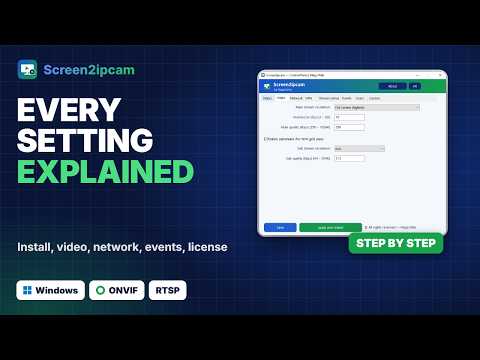 8:06
8:06 0:59
0:59 0:53
0:53