Blue Iris can add any ONVIF or RTSP camera. Screen2ipcam provides both, so the PC screen becomes a normal Blue Iris camera.
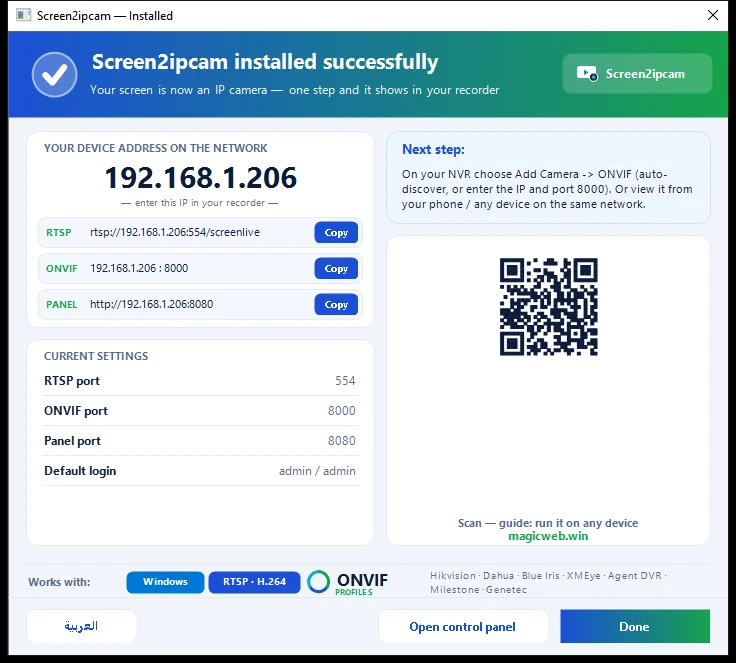
ONVIF port8000 (TCP)
RTSP port554 (TCP)
DiscoveryWS-Discovery, UDP 3702
Web panel8080
Default useradmin / admin (change it in the Users tab)
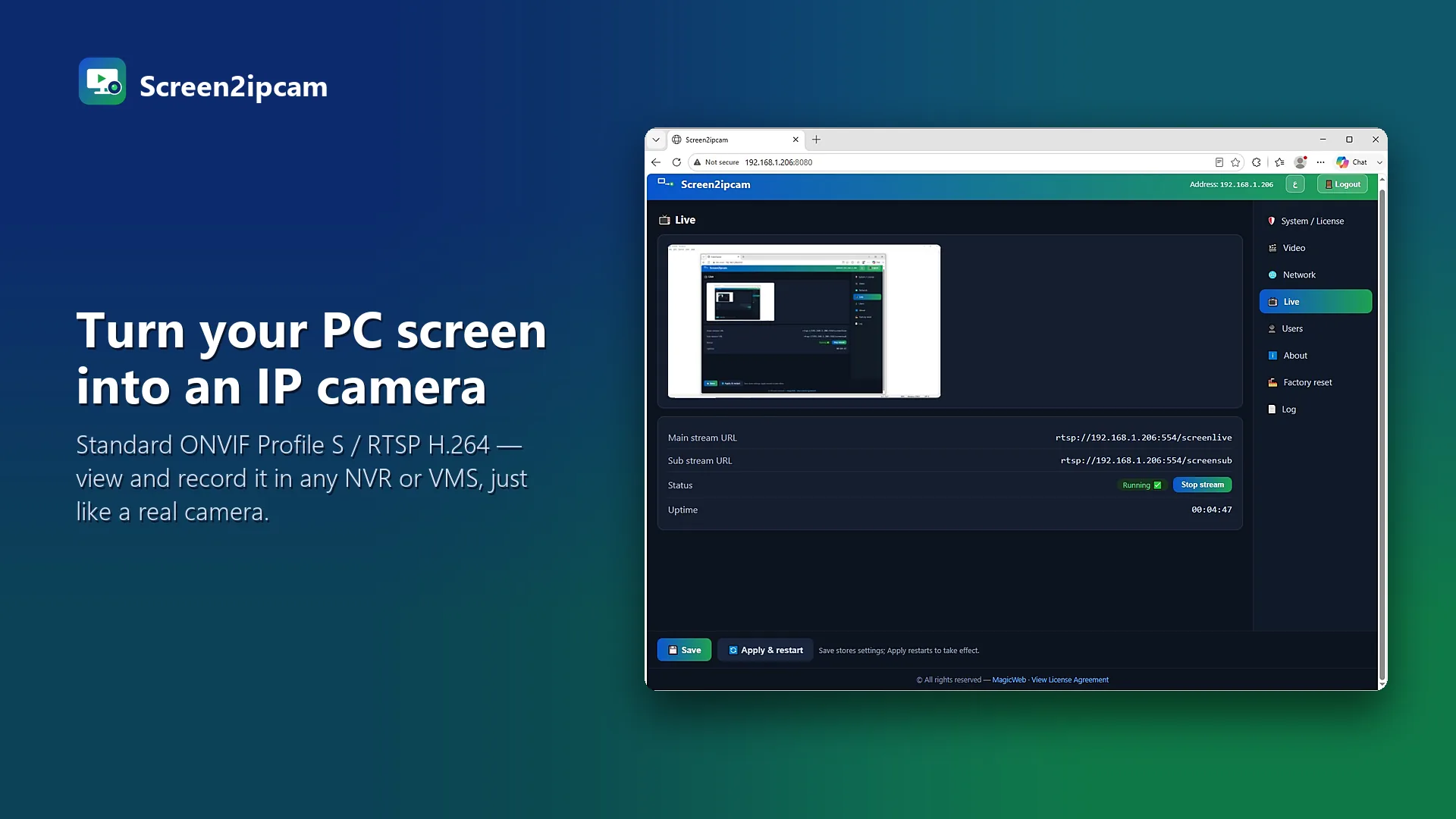
Main streamrtsp://PC-IP:554/screenlive
Sub streamrtsp://PC-IP:554/screensub
1. Add the camera
- In Blue Iris add a new camera and choose Network IP.
- Use Find/Inspect (ONVIF), or set the make to ONVIF.
- Enter the PC IP, ONVIF port
8000, RTSP port554, and the Screen2ipcam user and password.
2. Main and sub stream
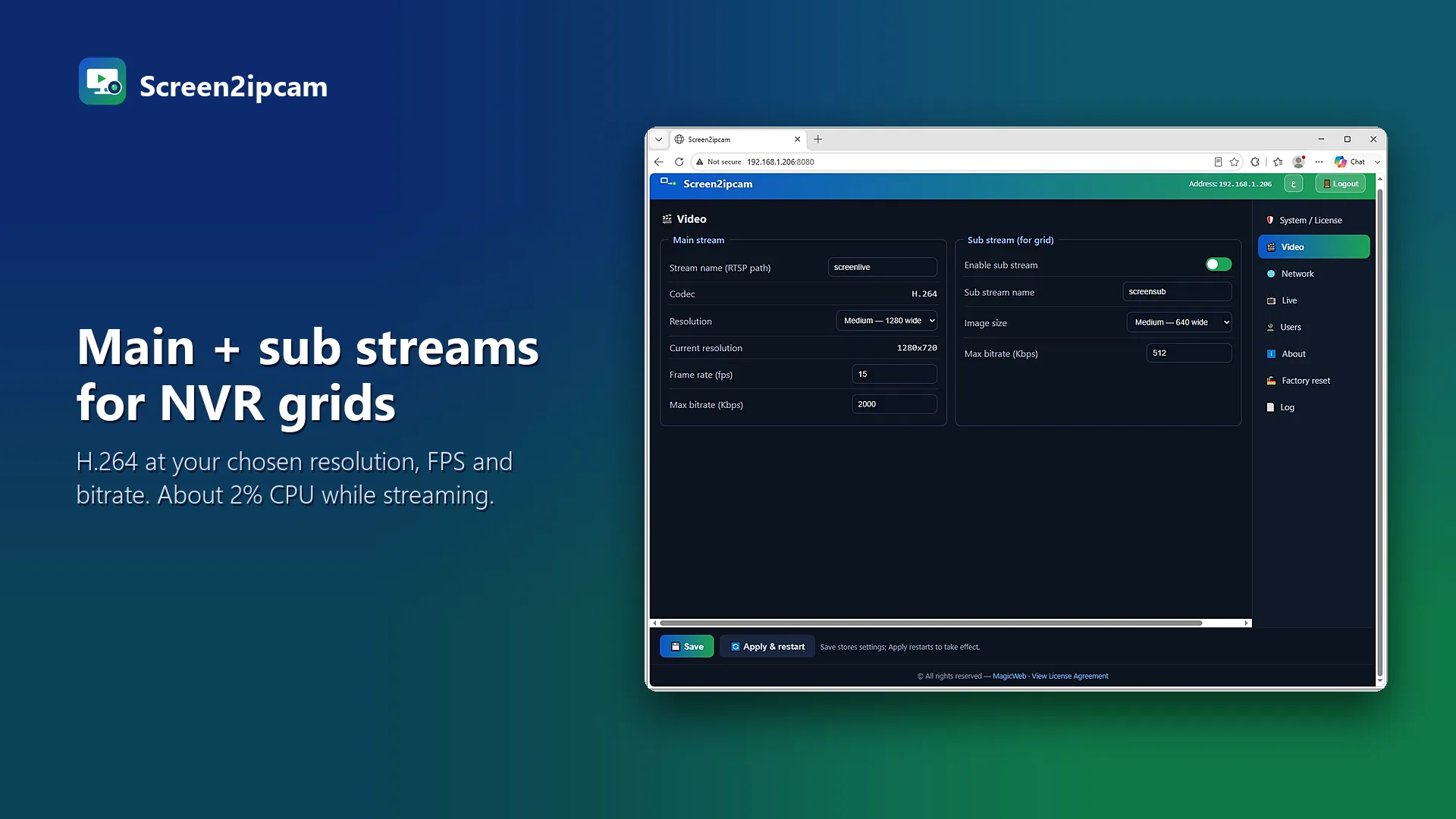
Pick the main stream (/screenlive) for recording and the sub stream (/screensub) for live preview. That keeps Blue Iris light even with several screens.
Try it on your own NVR14-day full trial · $20 one-time per PC · free edition on the Microsoft Store
Download free trialFAQ
Can I add it with RTSP only?
Yes. Use rtsp://PC-IP:554/screenlive as the stream address.
Does motion detection work?
Yes. Use Blue Iris motion on the stream, or Screen2ipcam ONVIF motion events.