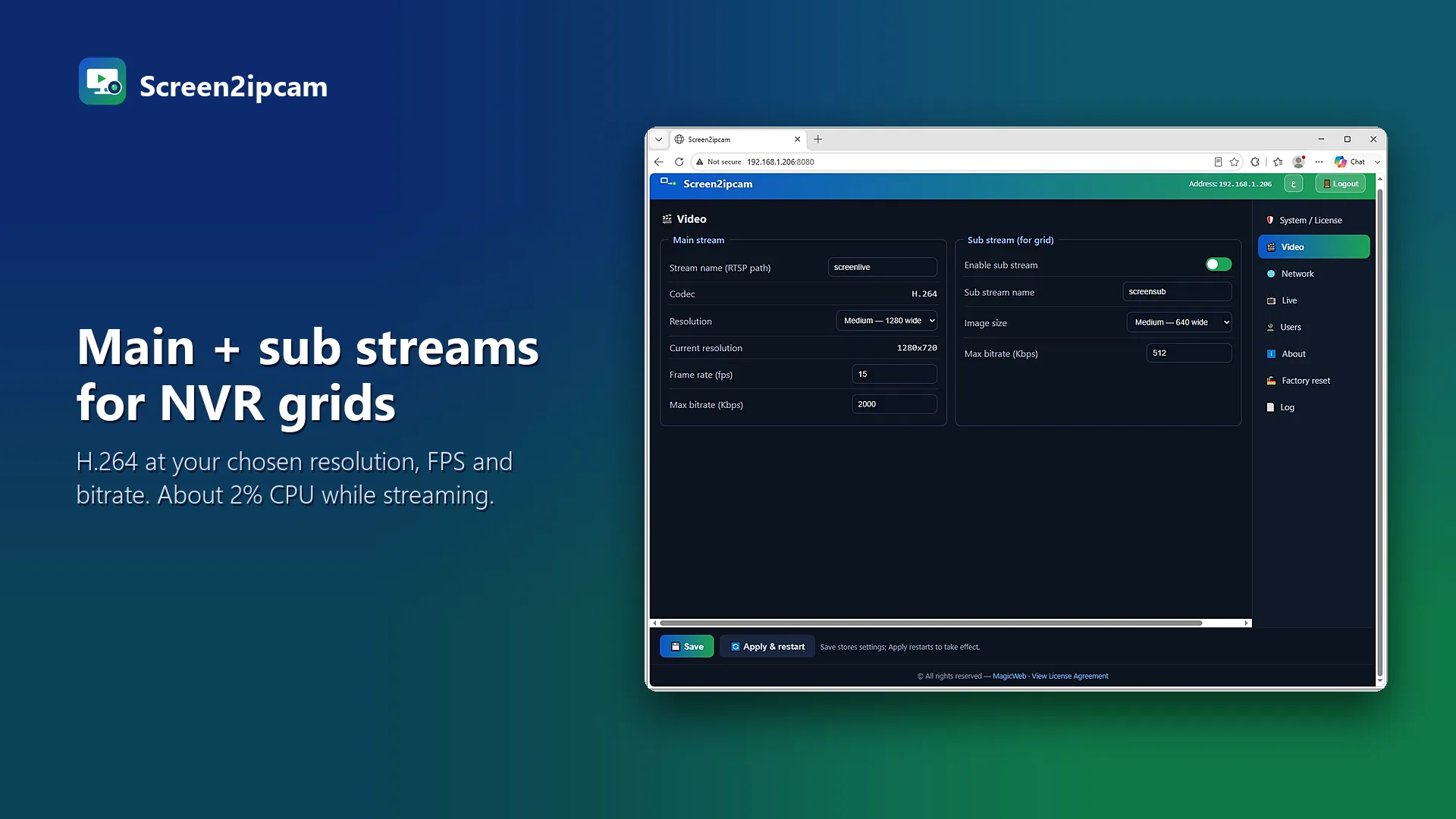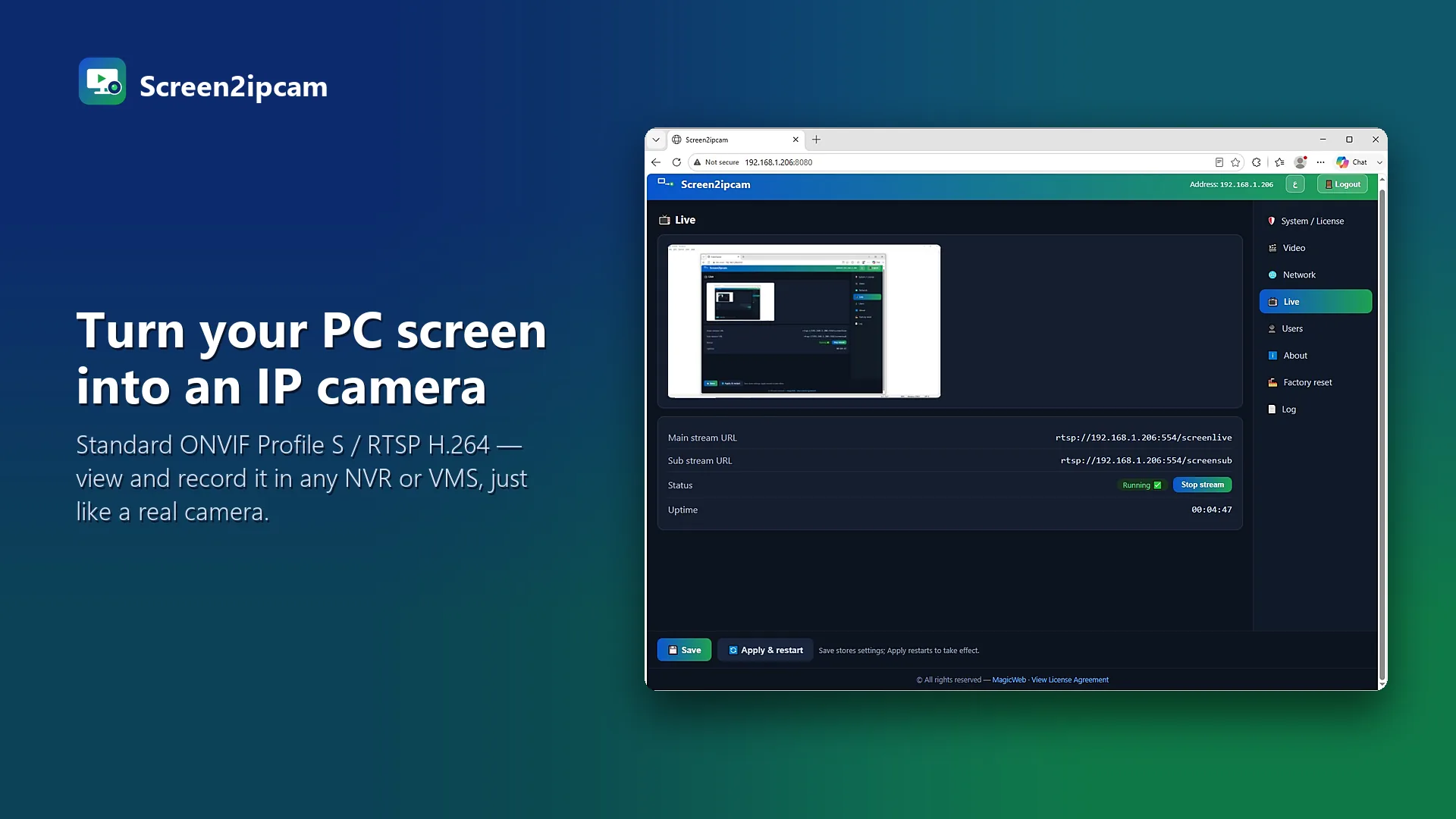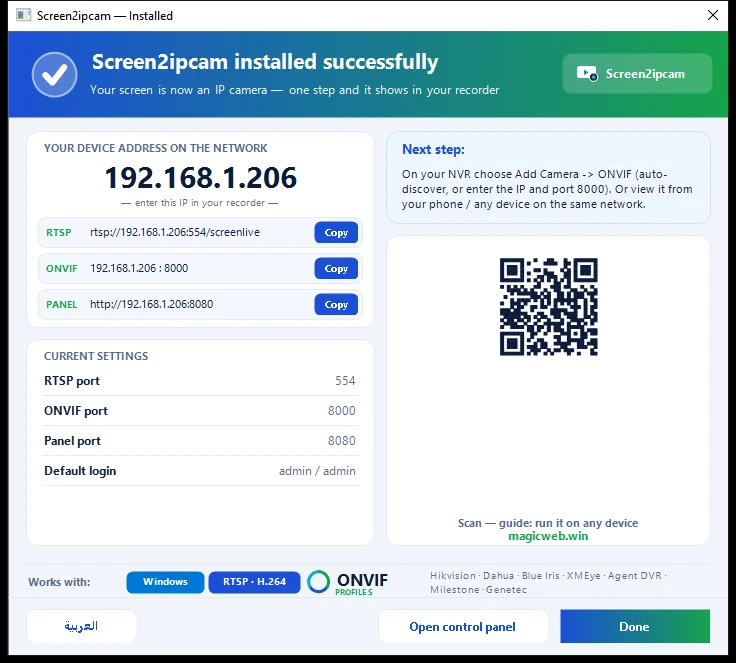
Nx Witness finds Screen2ipcam on the network as an ONVIF camera from the vendor MagicWeb. The setup takes a few minutes.
1. Add the camera
- Install Screen2ipcam on the PC to record and give the PC a fixed IP address.
- In Nx Witness the camera usually appears by itself (ONVIF discovery). If not, open Add Device, enter the PC IP and ONVIF port
8000. - Sign in with the Screen2ipcam user (default
admin/admin, change it in the Users tab).
2. The one important setting
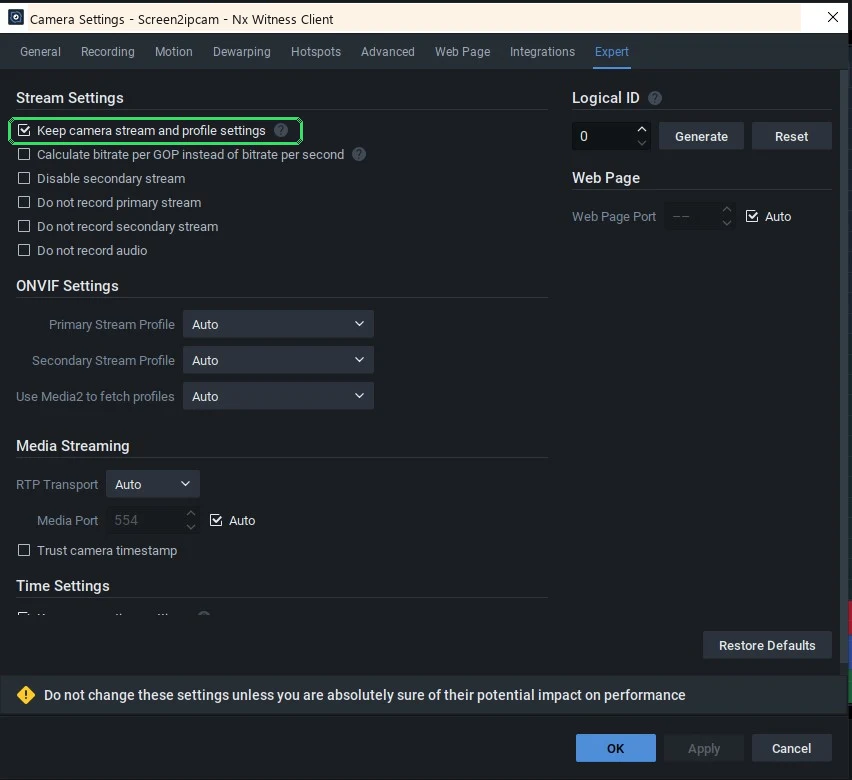
Open Camera Settings → Expert and check Keep camera stream and profile settings, then click OK. Without it, Nx may keep reconfiguring the streams and the camera can go offline every few seconds.
💡
Many cameras?
You can also turn off Allow Site to optimize device settings in Site Administration → General, for the whole site at once.
3. Record
Turn on recording for the channel like any other camera. The screen is then on the same timeline, search and export as your cameras.
Try it on your own NVR14-day full trial · $20 one-time per PC · free edition on the Microsoft Store
Download free trialSetup videos
- How Screen2ipcam works with Nx Witness
- Setup video, step by step
- Our page in the Nx Integration Directory
FAQ
Which Nx Witness version was tested?
Nx Witness 6.1.2 (build 42921).
Why does the camera go offline every few seconds?
Check "Keep camera stream and profile settings" in Camera Settings → Expert. That stops Nx from reconfiguring the streams.