 Screen2ipcam+
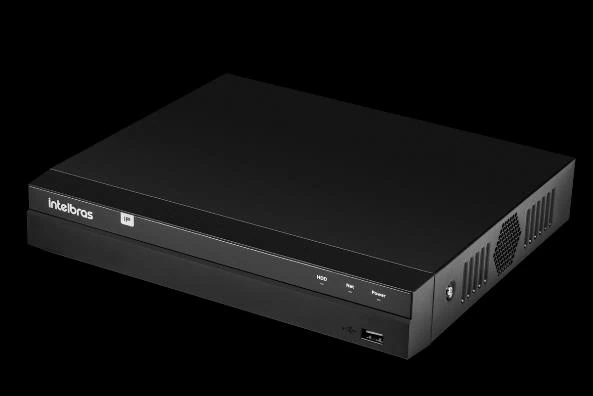
Record any Windows screen on your Intelbras NVR
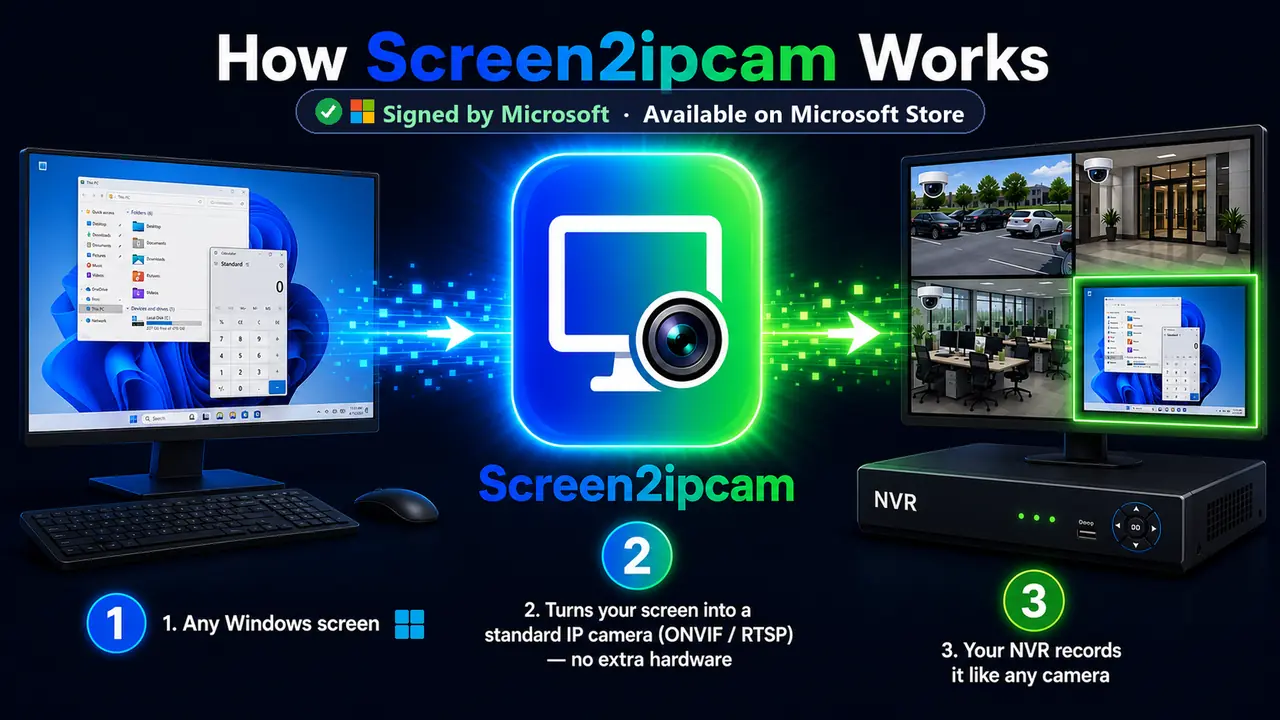
Screen2ipcam turns a Windows PC into a standard ONVIF Profile S camera. Your Intelbras NVR adds it from the Devices screen, then records the screen next to your cameras. No capture card and no HDMI encoder.
- ONVIF Profile S
- RTSP H.264
- Main + extra stream
- Sound (G.711)
How it works
Three parts and one open standard. Nothing is installed on the recorder.
Your Windows PC
Screen2ipcam captures the screen (or one window) and encodes it as H.264, with the PC sound if you want it.
Your network
It answers on ONVIF port 8000 and streams over RTSP port 554, exactly like an IP camera.
Your Intelbras
Adds the PC as one more channel, then records, searches and exports it with the cameras.
The values you will need
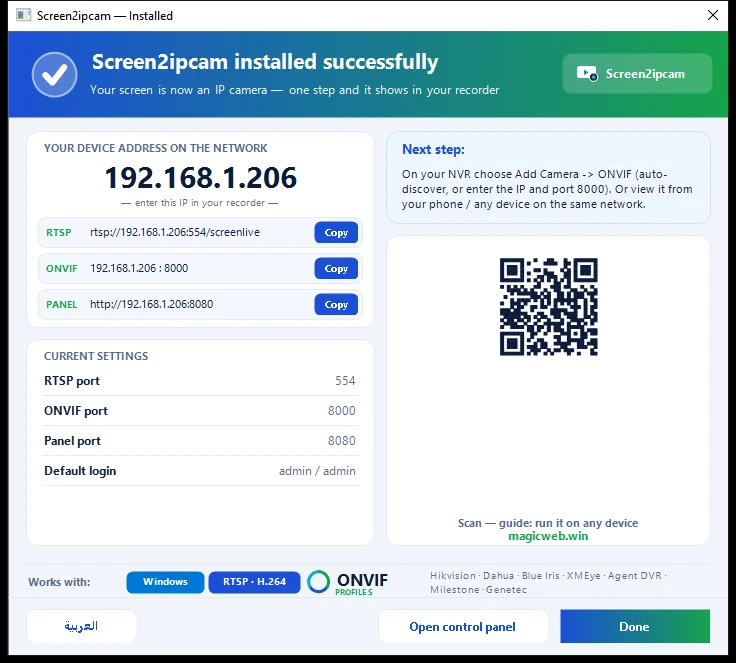
Copy them from the Screen2ipcam window on the PC. PC-IP is the address of that PC.
- ONVIF port
- 8000
- RTSP port
- 554
- User / password
- admin / admin (change it in Users)
- Main stream
- rtsp://PC-IP:554/screenlive
- Sub stream
- rtsp://PC-IP:554/screensub
- Discovery
- WS-Discovery · UDP 3702
Step by step
Prepare the PC
- Install Screen2ipcam on the PC whose screen you want to record (Windows 7 SP1 to 11, or Windows Server).
- Give the PC a fixed IP address, or a DHCP reservation on the router, so the recorder never loses it.
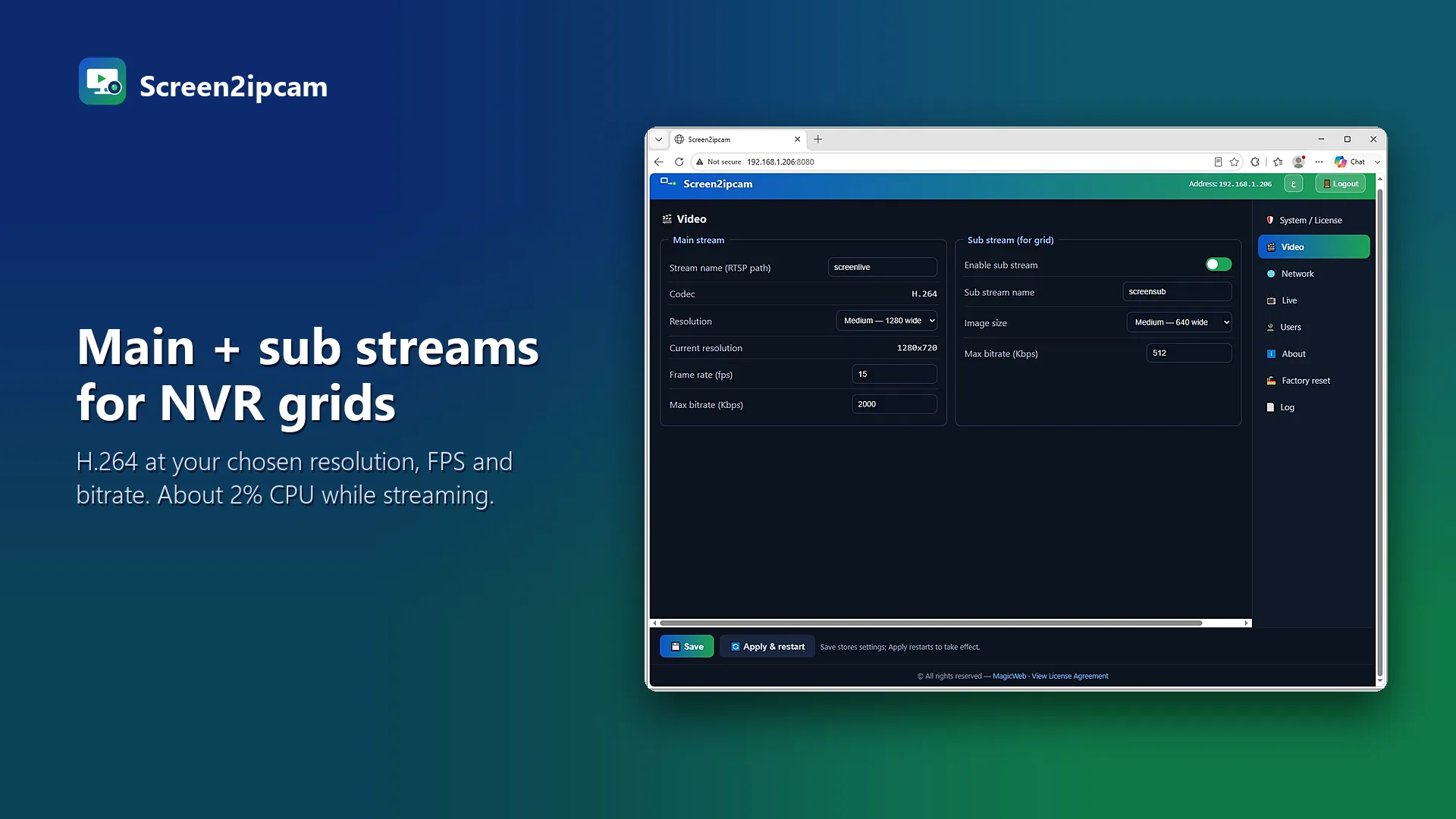
- In the Video tab choose the screen, the resolution, the frame rate and the bitrate (see the table below).
- When Windows asks, allow Screen2ipcam on private networks. Ports
8000and554must be open.
Open the Devices screen
- Right-click the live view and choose Adicionar Câmera (Add Camera), or
- go to Menu → Câmera → Dispositivos. On some models the screen is called Disp. remoto.
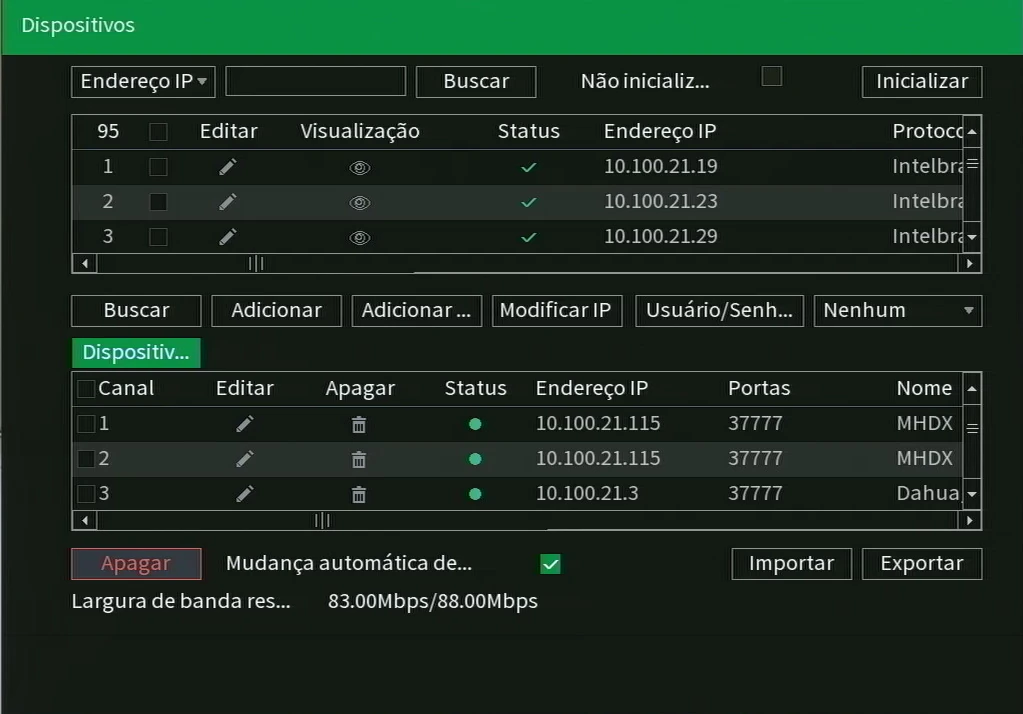
Search, or add it manually with ONVIF
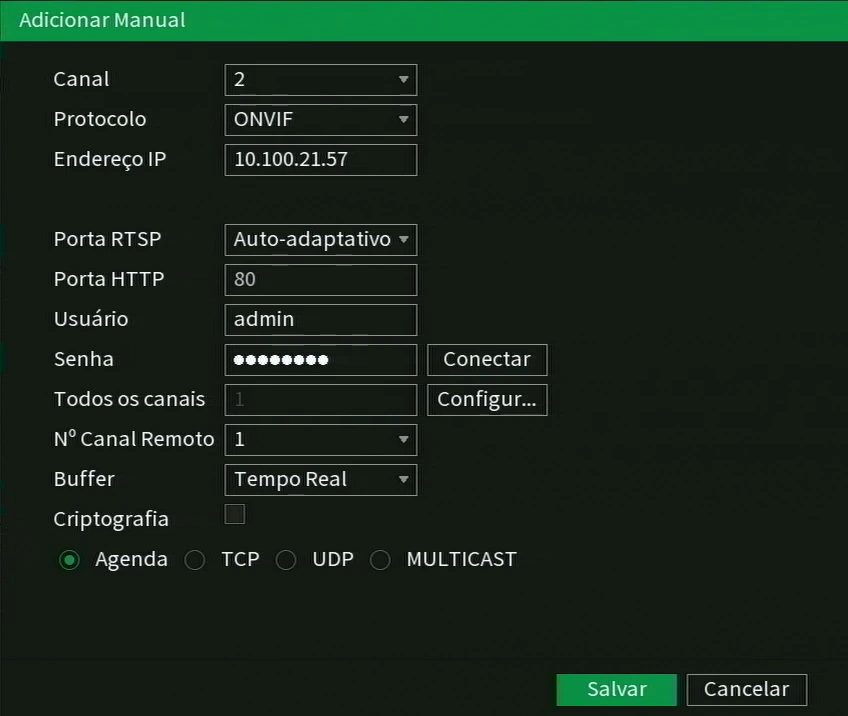
Click Buscar, select the PC and click Adicionar. Or click Adicionar manual and fill in:
- Protocolo: ONVIF (change it from Intelbras-1)
- Endereço IP: the PC IP
- Porta RTSP: Auto-adaptativo, or
554 - Porta HTTP:
8000(the Screen2ipcam ONVIF port) - Usuário / Senha: the Screen2ipcam user
Click Conectar to test, then Salvar.
Check the status
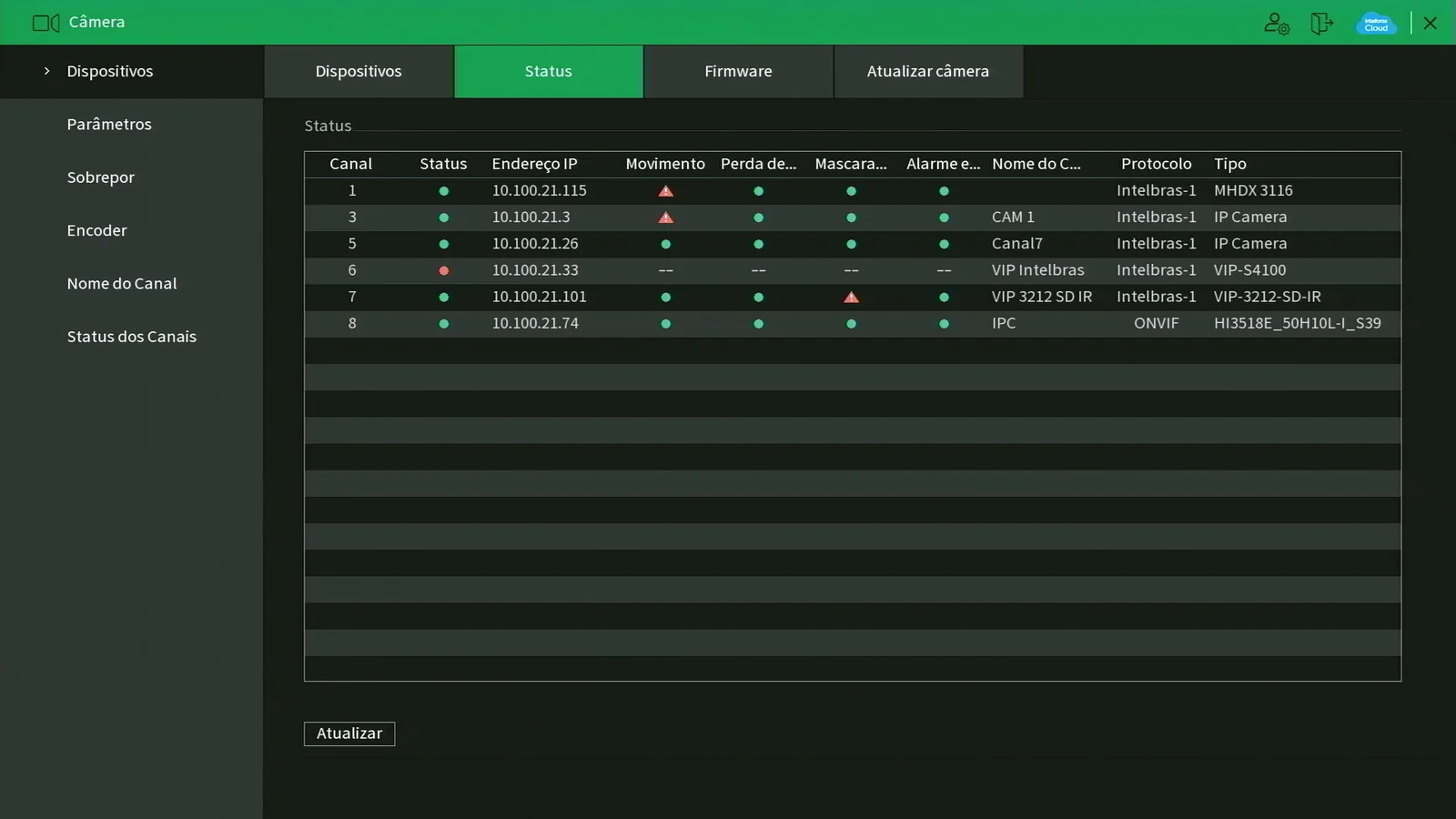
In Câmera → Status the channel shows online with protocol ONVIF.
Record
Intelbras NVRs record the main stream and use the extra stream for remote viewing. Set the channel in the recording schedule (Agenda), continuous or by event.
Recommended settings
These are the values from our real recorder test. A PC screen changes little, so 10 frames per second is plenty and keeps the bitrate low.
| Setting | Main stream (recording) | Sub stream (live grid) |
|---|---|---|
| Codec | H.264 | H.264 |
| Resolution | 1920×1080 | 640×360 |
| Frame rate | 10 | 10 |
| Bitrate | 2000 kbps | 512 kbps |
| PC sound (optional) | G.711, recorded with the video | |
Watch it wherever you watch your Intelbras
Once the PC is a channel on the recorder, it is part of the system like any camera.
If the channel stays offline
"Conectar" fails
The protocol is still Intelbras-1
Buscar does not show the PC
The PC has a VPN or two network cards
Test the PC on its own
Questions and answers
Does it work with Intelbras MHDX DVRs?
Which port goes in Porta HTTP?
Can I watch it in the Intelbras app?
Is there sound?
Does it need the internet?
Put your first screen on the Intelbras NVR today
Every feature for 14 days. Then $20 once per PC, no subscription, works offline.
Other recorders and VMS
 Listed
Nx Witness
Listed in the official Nx Integration Directory. Add the PC by ONVIF in Nx Witness.
Read the guide →
Hikvision
Custom Add over ONVIF on Hikvision NVRs and hybrid DVRs.
Read the guide → Tested
Dahua
Search Device, add, record. Tested on a real Dahua NVR.
Read the guide →
Blue Iris
Network IP camera with Find/Inspect, main and sub stream.
Read the guide →