Why record office screens
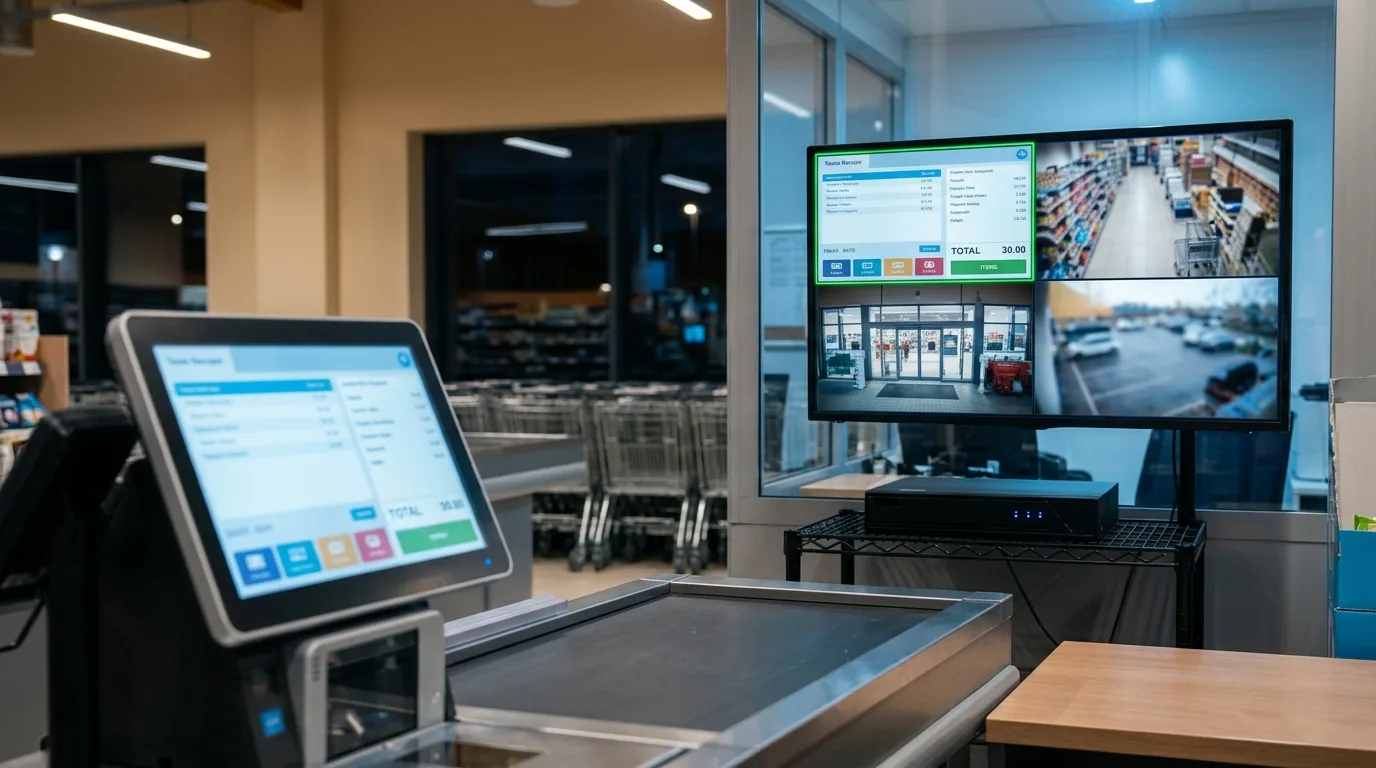
- Reception and front desk: see the booking or invoice on screen next to the desk camera.
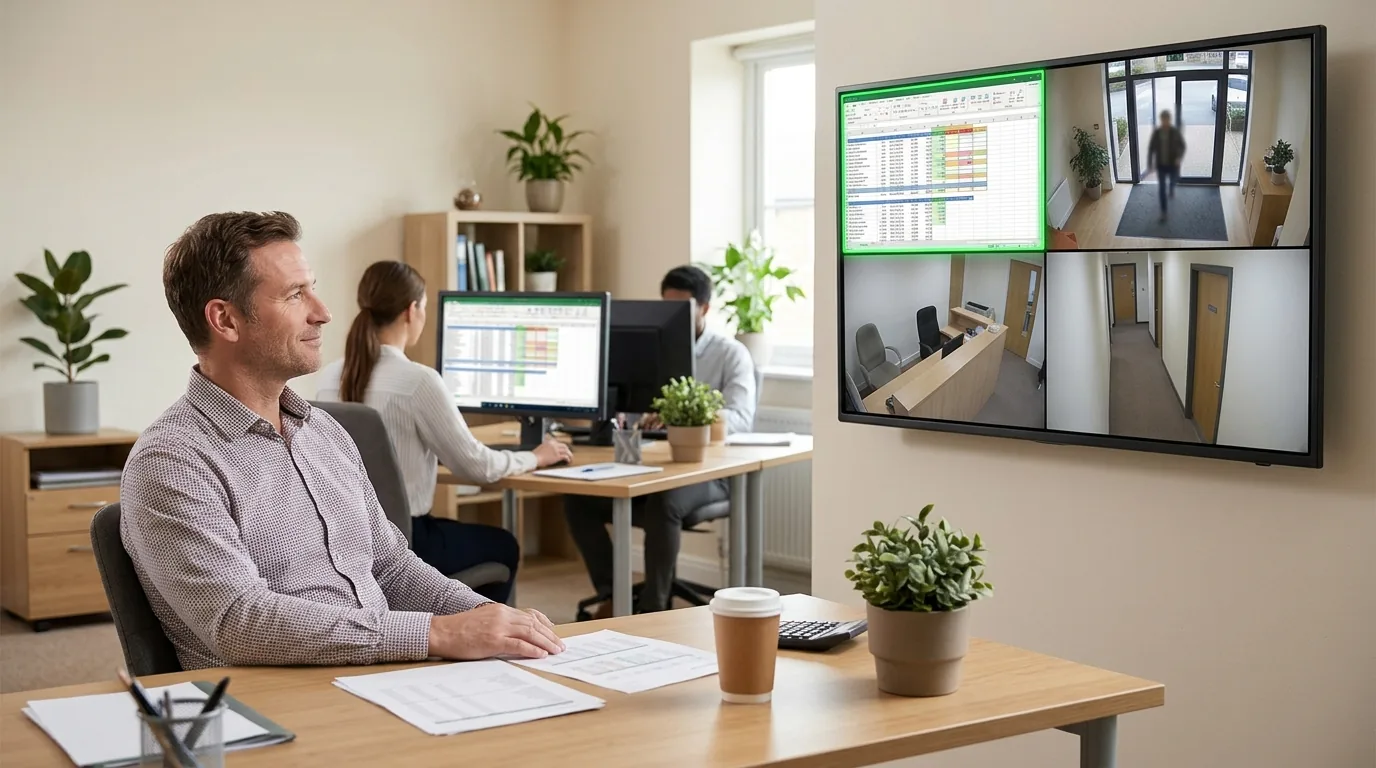
- Accounts: review a payment or a changed record at the exact time.
- Training: show new staff how a task was done on screen.
- One system: the screens use the same NVR, retention and user rights as the cameras.
How it works
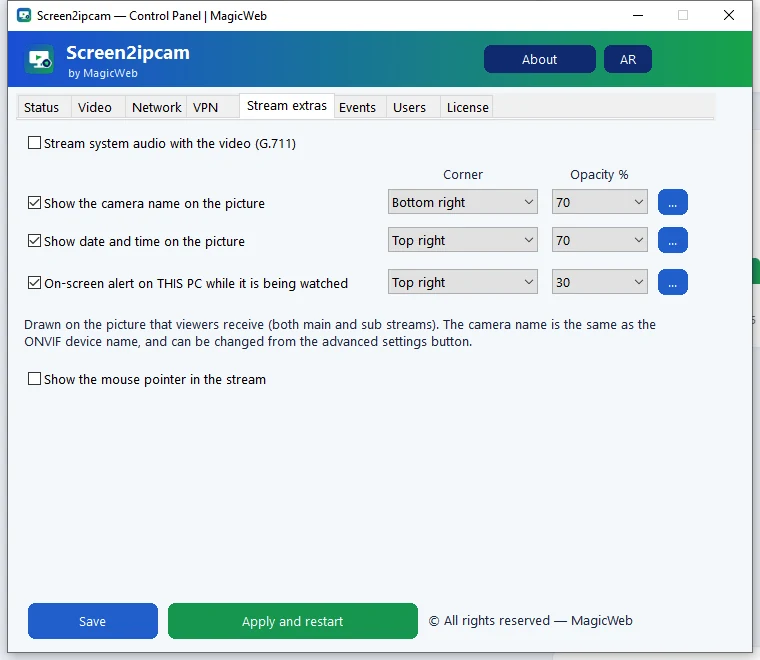
Screen2ipcam runs on each Windows PC and publishes its screen as a standard ONVIF / RTSP camera. The NVR adds every PC as one more channel. It runs as a Windows service, starts with Windows and uses about 2% CPU.
Setup in 4 steps
- Install Screen2ipcam on each PC you want to record.
- Give each PC a fixed IP address (or a DHCP reservation).
- Add each PC on the NVR with ONVIF, port
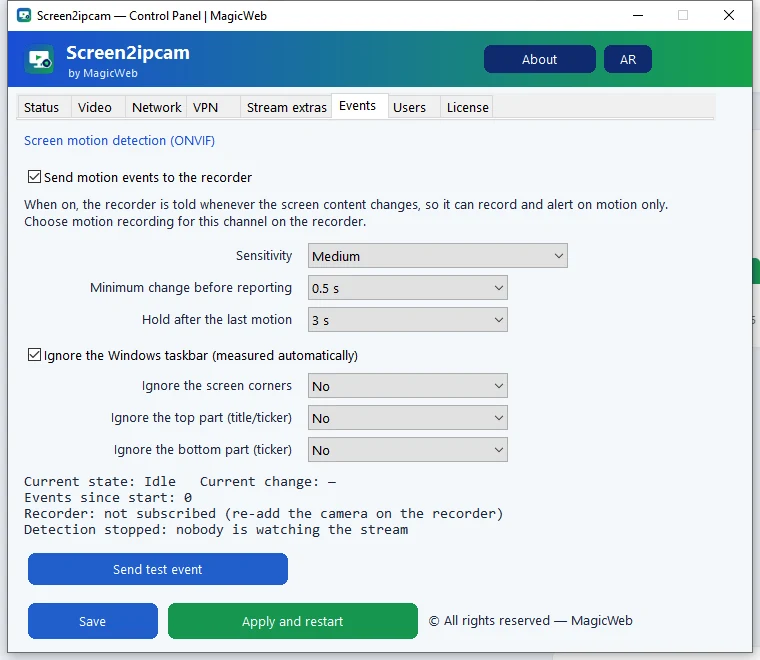
8000. - Record on motion, so idle screens use almost no disk.
Good practice
- Tell your team that office screens are recorded, the same way you do for cameras.
- Rename each channel on the NVR, for example Reception or Accounts 1.
- Give playback rights only to the people who need them, using the NVR user accounts.
Try it on your own NVR14-day full trial · $20 one-time per PC · free edition on the Microsoft Store
Download free trialFAQ
How many PCs can I add?
As many as your NVR has free channels. Each PC needs its own license.
Does it work on old office PCs?
Yes. Windows 7 SP1 to 11, 32 and 64-bit.
Does the video go to the internet?
No. It goes only to your own NVR on the local network.