 Screen2ipcam+Pelco VideoXpert
Record any Windows screen in Pelco VideoXpert
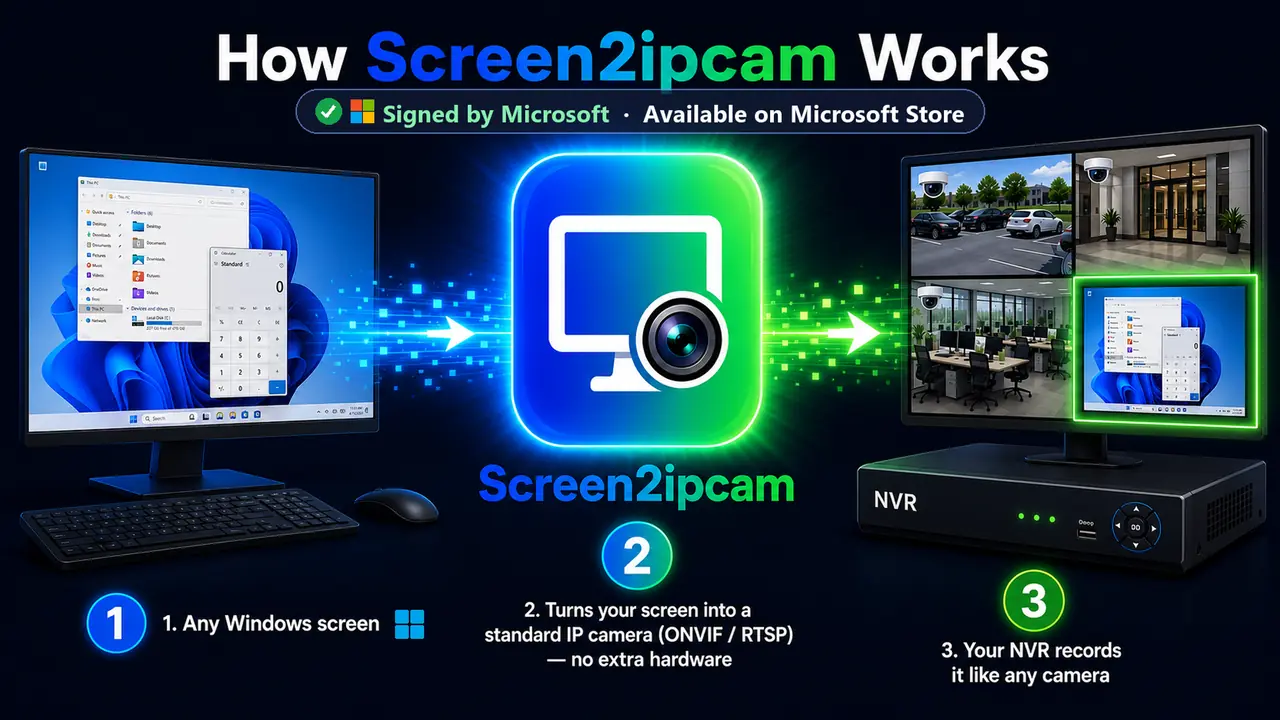
Screen2ipcam turns a Windows PC into a standard ONVIF Profile S camera. VxToolbox discovers it like any third-party camera, and VideoXpert records the screen on the same timeline as your cameras. No capture card, no encoder, no plugin.
- Verified on VideoXpert
- ONVIF Profile S
- RTSP over TCP
- RTCP time sync
Download Screen2ipcam for VideoXpert
This is the build we made and verified for Pelco VideoXpert. It is the full Screen2ipcam 2.0.5 with timing improvements that VideoXpert records by.
- Same features, 14-day full trial and license as the standard version.
- Windows 7 SP1 to Windows 11, and Windows Server.
- Installs over an existing Screen2ipcam 2.0.5.
SHA-256
529370178B026F9E15A5AC228DF7A150511D6FE40060070A15EEF9445D6B31A8A7A06685F151C8FB2F131247281135B1095FC69D07FF293137D506DE3E47E8CEWhat's in the VideoXpert build
How it works
Three parts and one open standard. Nothing is installed on the VideoXpert server.
Your Windows PC
Screen2ipcam captures the main display and encodes it as H.264, like a camera sensor.
Your network
It answers ONVIF on port 8000 and streams RTSP over TCP on port 554.
Pelco VideoXpert
VxToolbox commissions the PC as a camera, the recorder records it, and VxOpsCenter shows it with your cameras.
The values you will need
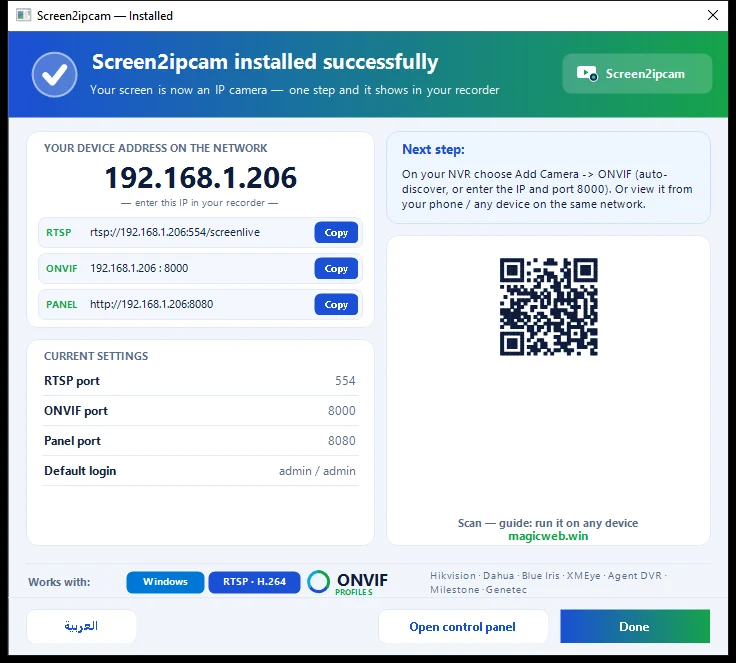
PC-IP is the address of the PC. The user and password are the ones in Screen2ipcam, not in VideoXpert.
- ONVIF (HTTP) port
- 8000
- RTSP port
- 554
- User / password
- admin / admin (change it in Users)
- Main stream
- rtsp://PC-IP:554/screenlive
- Web panel
- http://PC-IP:8080
- Discovery
- WS-Discovery · UDP 3702
Step by step
The VxToolbox steps follow the official VideoXpert Toolbox v3.25 Operations Manual. Menu names can differ slightly between versions.
Prepare the PC
- Install the VideoXpert build (above) on the PC whose screen you want to record.
- Give the PC a fixed IP address, or a DHCP reservation, so the recorder never loses it.
- When Windows asks, allow Screen2ipcam on private networks. TCP ports
8000and554must be reachable from the recorder.
Turn off the sub stream
Open the Screen2ipcam web panel at http://PC-IP:8080, go to Video, turn the sub stream off and save.
VideoXpert 3.0 and later expects the primary and secondary streams of a camera to have the same settings. One stream is the simplest way, and it is the setup verified on the live system.
Find the PC in VxToolbox
Open VxToolbox → Devices, then either:
- Click Quick Discovery. The PC is found over WS-Discovery as an ONVIF device.
- Or open the Advanced Discovery Options menu → Advanced Discovery → Discover by IP or Hostname: Host = PC-IP, HTTP Port =
8000, the Screen2ipcam user and password and, if asked, the ONVIF driver. Click Discover.
rtsp://PC-IP:554/screenlive and the Screen2ipcam credentials.Add the credentials and commission
Select the PC in the device list, type the Screen2ipcam user and password and click Submit. Then right-click it and choose Commission. In Recorder Assignment, pick the recorder and click Add. The icon changes to Commissioned.
Record and check the timeline
In Recording → Recorders, select the recorder and tick the PC under All Data Sources (Enterprise systems), then give it a recording schedule in Schedules. Open VxOpsCenter: the live view shows the PC screen, and after a few minutes the timeline shows one continuous recording.
Want us to set it up with you?
Book a free remote session. We install Screen2ipcam with you over AnyDesk and add the PC to VideoXpert.
Recommended settings
The values from the verified VideoXpert system. A PC screen changes little, so 10 frames per second is plenty.
| Setting | Main stream (recording) | Sub stream |
|---|---|---|
| Codec | H.264 | Off |
| Resolution | 1920×1080 | |
| Frame rate | 10 | |
| Bitrate | 2000 kbps |
Watch it where you watch your cameras
Once the PC is commissioned, it is a camera like any other in VideoXpert.
If something is not right
Recordings are split into short pieces (about every 30 s)
Quick Discovery does not find the PC
The device needs authentication
No video, or the camera stays offline
Settings changed but VideoXpert shows the old stream
The PC has a VPN or two network cards
Questions and answers
Which VideoXpert systems does it work with?
Do I need a Pelco integration license?
How is it different from the standard Screen2ipcam?
UDP or TCP?
Can I record many PCs?
How much does it cost?
For Pelco partners and integrators
- Integration type
- Third-party ONVIF Profile S camera (virtual IP camera)
- Pelco components
- VxToolbox, VideoXpert recorder, VxOpsCenter
- Licensing
- No Pelco integration license. One VideoXpert camera license per PC channel, one Screen2ipcam license per PC.
- Technical contact
- support@screen2ipcam.com
Put your first screen on VideoXpert today
Every feature for 14 days. Then $20 once per PC, no subscription, works offline.