What is a virtual IP camera?
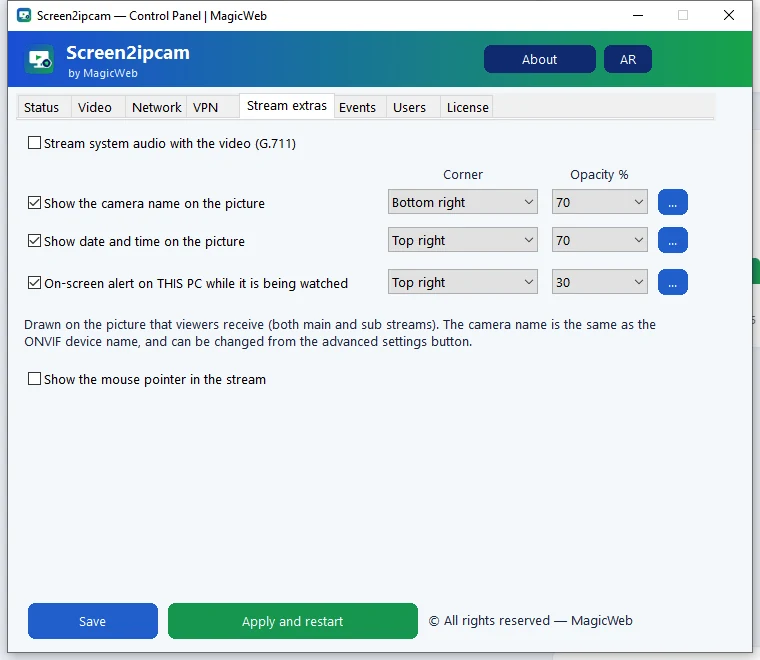
A virtual IP camera is software that behaves exactly like a network camera, but the picture comes from a computer instead of a lens. Virtual IP camera software for VMS / NVR publishes that picture with the same standards real cameras use: ONVIF so the recorder can discover and add it, and RTSP / H.264 so it can stream and record it.
Screen2ipcam is a virtual IP camera for Windows. It turns the PC screen into a standard ONVIF Profile S camera. No capture card, no HDMI encoder, no extra cables.
Why record screens in the VMS
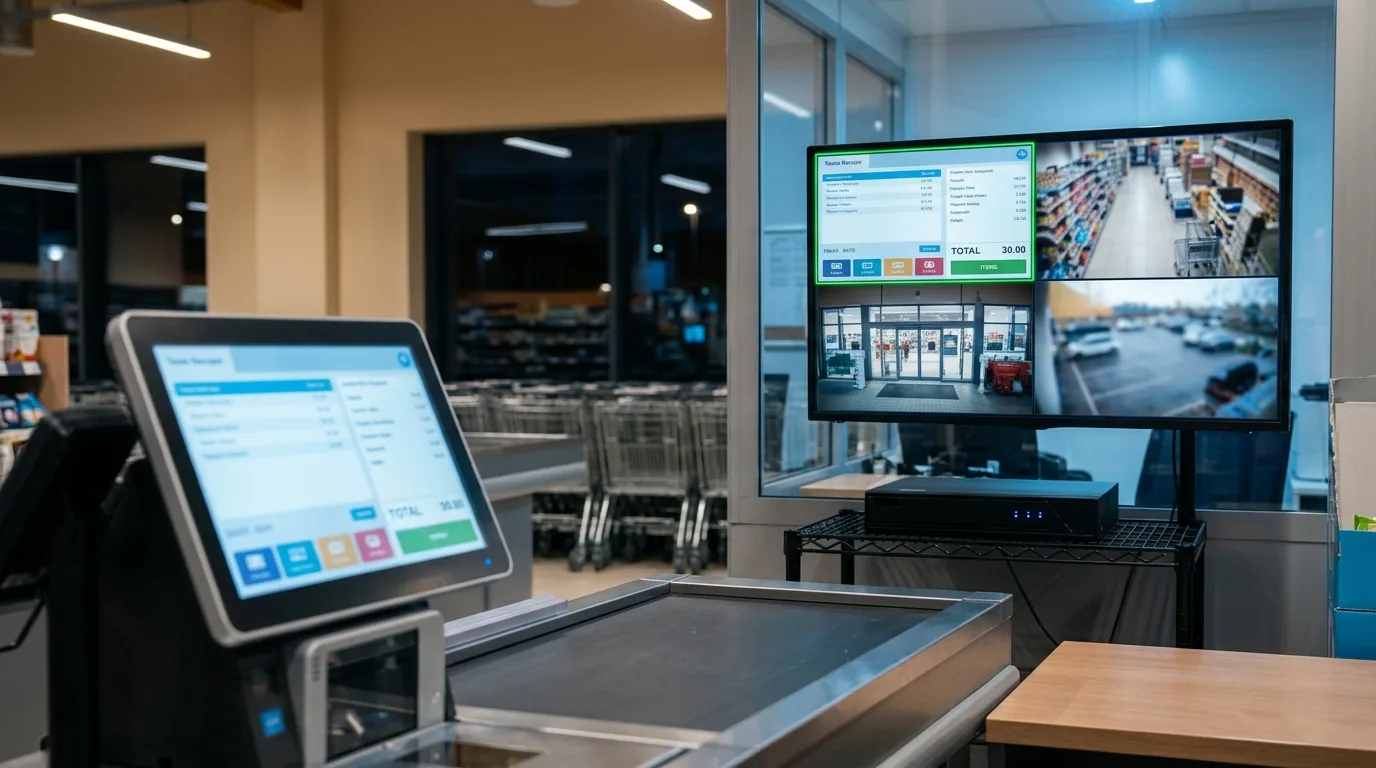
Most security teams already have a VMS or NVR with retention, search, user rights and export. Recording the screen there means one system for everything:
- POS and cash registers: see the screen next to the camera on the counter, at the same time code.
- Control rooms and SCADA: keep a record of what the operator saw.
- Call centers, banks, clinics: review a session when a customer complains.
- Dashboards and kiosks: prove what was on screen and when.

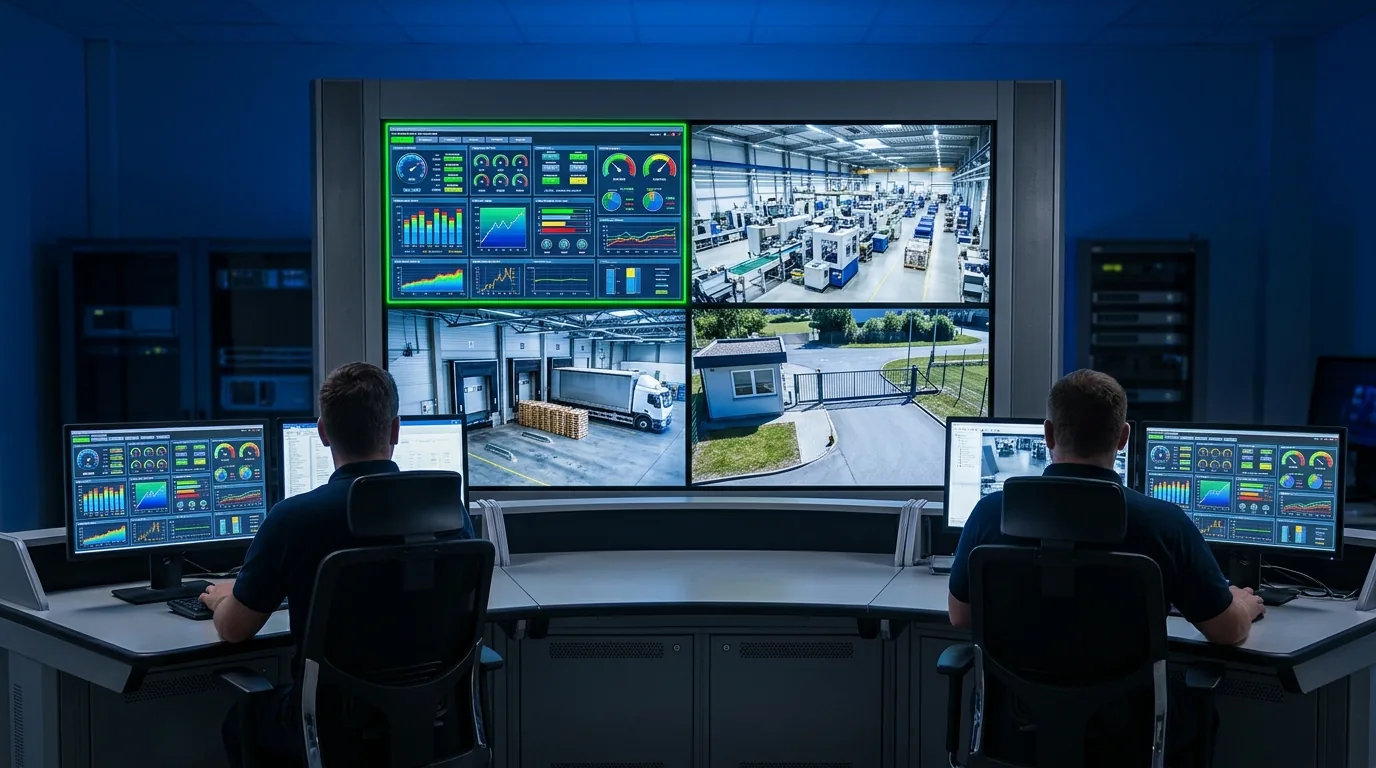
See more use cases and the POS screen guide.
How it works
The app captures the main display, encodes it to H.264 and serves two streams over RTSP: a main stream for recording and a light sub stream for live view on phones. ONVIF answers the recorder: device info, stream addresses and motion events. It runs as a Windows service and uses about 2% CPU.

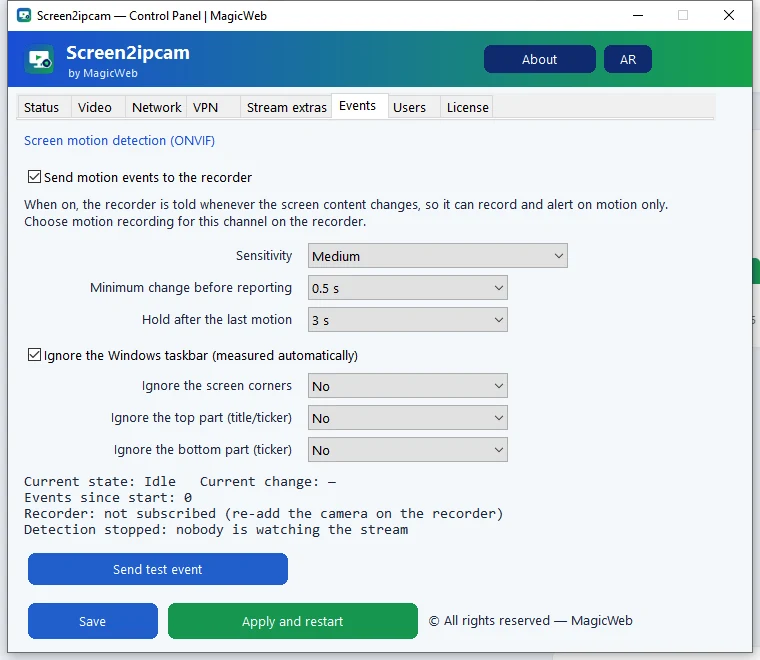
When something changes on the screen, Screen2ipcam sends an ONVIF motion event. The NVR can record only when the screen changes and save disk space. How to set it up.
What to check before you choose
Any virtual IP camera software should pass these checks with your own recorder:
- Real ONVIF, not RTSP only. The NVR should find it with its search button and add it like any camera.
- Main and sub stream. Full quality for recording and a light stream for remote view.
- Motion events over ONVIF. So you can record on change instead of 24/7.
- Runs as a service. It must keep streaming after a reboot, with nobody logged in.
- Low CPU. The PC is a cash register or a workstation first, so the capture must stay light.
- Works offline. Video should stay on your network, with no cloud account.
- Old Windows too. Many POS PCs still run Windows 7 or 32-bit Windows.
Screen2ipcam does all of the above on Windows 7 SP1 to Windows 11 and Windows Server, 32 and 64-bit.
Setup in 4 steps
- Download Screen2ipcam from
screen2ipcam.comon the PC whose screen you want to record, and run the installer. - Give the PC a fixed IP address (or a DHCP reservation on the router), so the recorder never loses it.
- Open the control panel. In the Video tab set the resolution, frame rate and bitrate. Screen2ipcam streams the main display of the PC. For text screens like a cash register, around 10 FPS is plenty.
- Allow Screen2ipcam in Windows Firewall when Windows asks (private networks).
Then add the PC on your recorder with ONVIF search, or manually with its IP, port 8000 and the user admin.
Works with your VMS / NVR
Because it speaks standard ONVIF and RTSP, the virtual camera works with recorders and VMS that support ONVIF cameras. Step-by-step guides: Hikvision · Dahua · Nx Witness · Blue Iris · all integrations.
FAQ
What is virtual IP camera software?
Software that makes a computer act like a network camera. Screen2ipcam publishes the Windows screen as an ONVIF / RTSP camera that any compatible VMS or NVR can record.
Do I need a capture card or HDMI encoder?
No. The screen is captured in software and sent over the network like any IP camera.
Which VMS and NVR does it work with?
Recorders and VMS that support ONVIF cameras, for example Hikvision, Dahua, Nx Witness and Blue Iris. Anything that can open an RTSP stream can also use it.
Does it need internet or a cloud account?
No. Video stays on your local network and the license is activated offline.
Is there a free version?
Yes. The full app has a 14-day trial, and a free edition is on the Microsoft Store. The full license is $20 one-time per PC.